
Download Activity Timer – free time‑management, productivity & Mac timer tool
Why Activity Timer Is the Quiet Companion Every Professional Needs
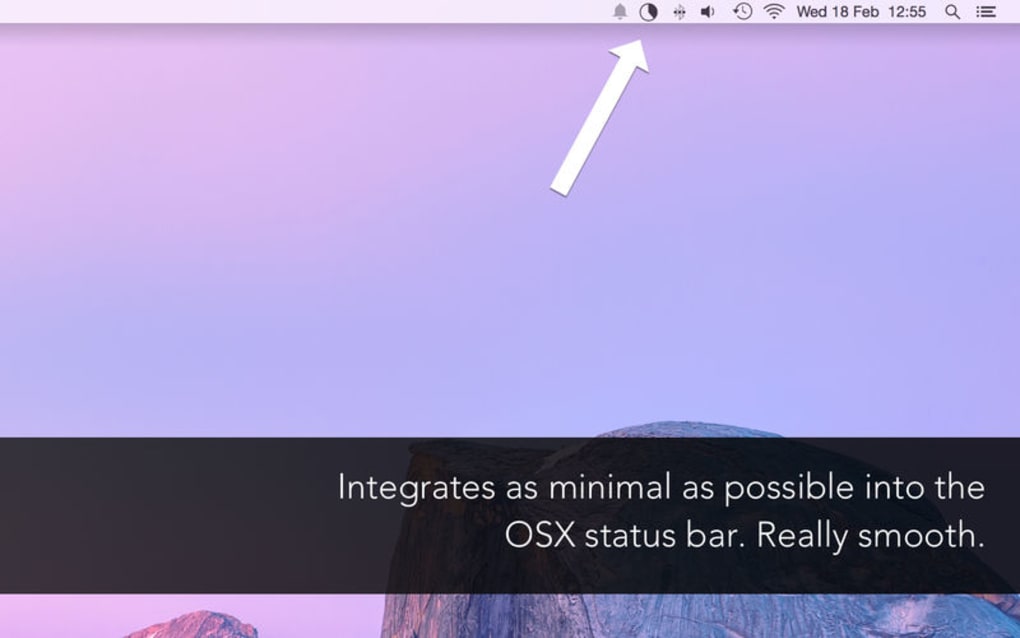
In today’s hyper‑connected work environment, staying focused can feel like an uphill battle. Activity Timer steps in as a minimalist, non‑intrusive solution that helps you measure how efficiently you work during your most productive hours. Designed to sit snugly in the macOS status bar, the app offers a clean interface that never distracts you from the task at hand.
Whether you’re a developer sprinting through a code‑review, a writer polishing a chapter, or a designer polishing UI mockups, the timer lets you define exact work intervals—30, 25, 5, or even 3 minutes—so you can allocate time with surgical precision. The real power of Activity Timer lies in its flexibility. You can set custom intervals using intuitive input formats such as 2m for two minutes, 47s for seconds, or a full 04:11:30 (hours:minutes:seconds) for longer sessions.
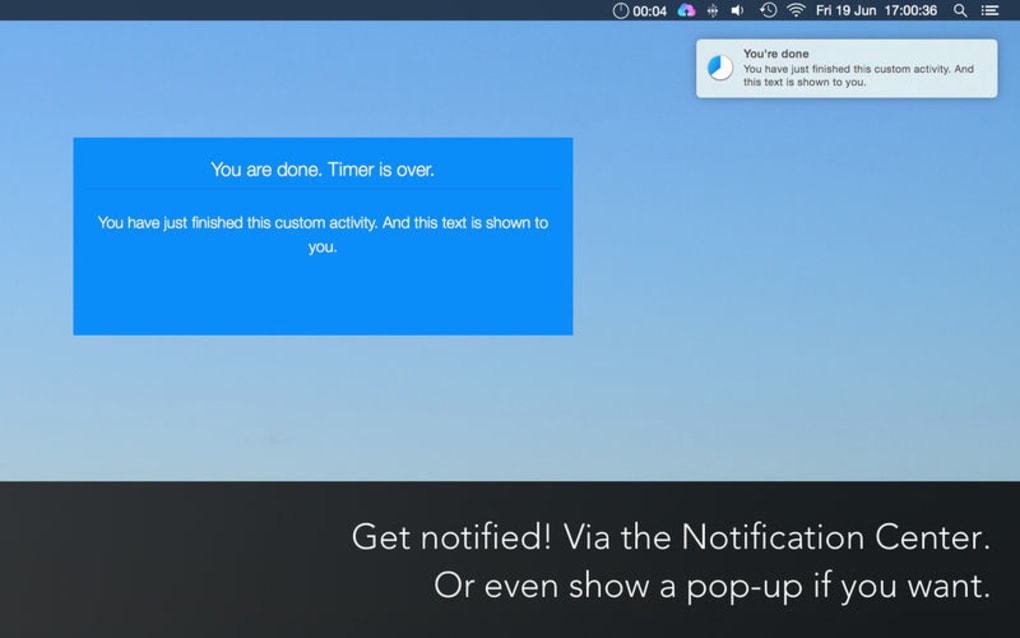
When the timer ends, a pop‑up message appears, and you can personalize that message with motivational notes like “Well done!” or “Keep it up!” This simple feedback loop reinforces good habits without the heavy‑handed notifications common in many productivity suites. Because the app integrates directly into the status bar, it remains out of sight until you need it, preserving screen real‑estate for your work. You can even enable auto‑start at boot, ensuring that every workday begins with a clear structure.
If pop‑ups become a nuisance, a single toggle lets you silence them permanently. In short, Activity Timer is a lightweight, secure, and free utility that brings measurable focus to anyone who values their working hours.
Key Features, Pros & Cons – A Deep Dive into What Activity Timer Offers
- Seamless status‑bar integration for macOS – stays hidden until needed.
- Multiple preset intervals (30 min, 25 min, 5 min, 3 min) plus fully customizable timers.
- Intuitive input syntax:
2m,47s,hh:mm:ss. - Customizable end‑of‑timer messages to boost motivation.
- Auto‑start on system boot for instant readiness.
- Option to disable pop‑up alerts for a completely silent experience.
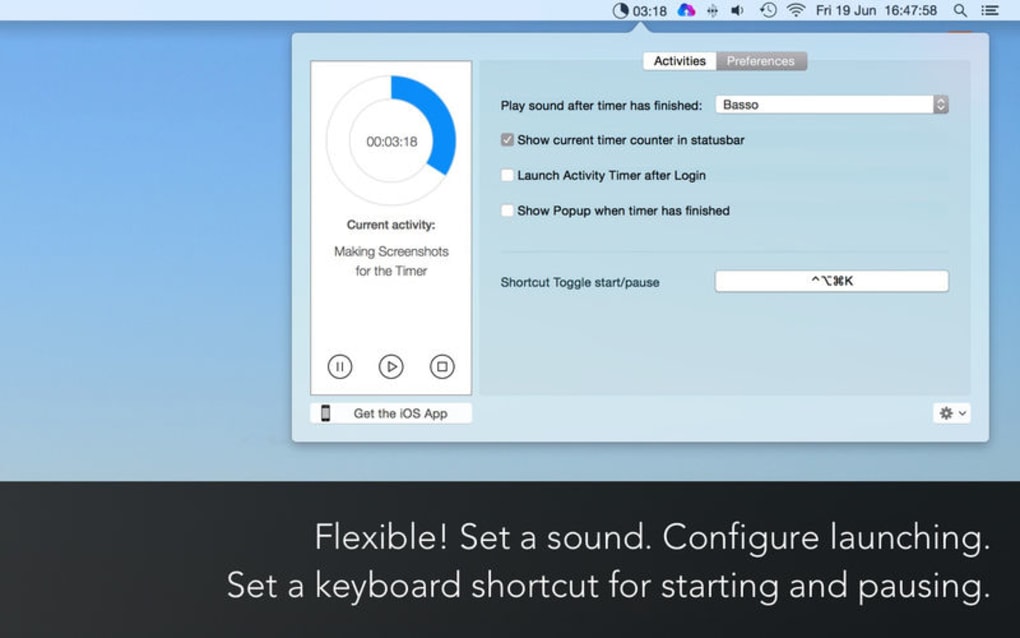
- Keyboard shortcuts for start, pause, and reset to keep hands on the keyboard.
- Enhanced activity list view for quick overview of upcoming sessions.
Pros
- Zero‑intrusion: The timer lives in the status bar and never steals focus.
- Highly customizable: From preset intervals to custom messages, you control every detail.
- Free and lightweight: No hidden fees, low memory footprint, perfect for older Macs.
- Simple UI: A clean design that’s easy to understand for beginners.
- Auto‑start capability: Begins timing automatically after a reboot, fostering routine.
Cons
- Currently macOS‑only; Windows and Linux users must look for alternatives.
- No built‑in analytics or detailed time‑tracking reports.
- Limited to a single timer instance – cannot run parallel timers for multitasking.
- Customization of pop‑up appearance (colors, fonts) is not available.
Installation, Usage Tips, Compatibility & Frequently Asked Questions
How to Install Activity Timer on macOS
Installing Activity Timer is straightforward. Follow these steps to get up and running in under two minutes:
- Visit the official website or the Mac App Store and click the Download button.
- Once the
.dmgfile finishes downloading, double‑click to open it. - Drag the Activity Timer icon into your Applications folder.
- Launch the app; macOS may ask you to confirm that you trust the developer—click Open.
- After the first launch, you’ll see a tiny timer icon appear in the status bar at the top of the screen.
The app requires macOS 10.12 Sierra or later. No additional dependencies or admin rights are needed beyond the initial installation.
Basic Usage Workflow
1. Click the status‑bar icon to reveal the dropdown menu.
2. Choose a preset interval or type a custom value (e.g., 15m or 01:30:00).
3.
Press Start or use the shortcut ⌘ Space + S (configurable in Preferences).
4. When the timer finishes, a pop‑up appears with your chosen message; click OK to dismiss.
5. To pause, hit ⌘ Space + P, and to reset, use ⌘ Space + R.
Compatibility
Activity Timer is built exclusively for macOS, leveraging native status‑bar APIs for optimal performance. While Windows and Linux versions are not currently available, the developer has hinted at future cross‑platform support based on user demand.
FAQ – Your Most Common Questions Answered
Can I run multiple timers at the same time?
No, Activity Timer supports only one active timer. If you need parallel timing, you’ll need a separate instance or another app.
Is there a way to export my timing data?
Currently the app does not provide export or detailed logs. It focuses on simplicity rather than analytics.
Can I disable the end‑of‑timer pop‑up?
Yes. Open Preferences, locate the “Notifications” section, and toggle the pop‑up option off.
Does Activity Timer work on Apple Silicon Macs?
Absolutely. The binary is universal, so it runs natively on both Intel and Apple Silicon Macs.
Is there a paid version with more features?
As of now, Activity Timer is completely free. The developer may introduce premium add‑ons in the future, but the core functionality remains free forever.
Final Thoughts – Take Control of Your Work Hours Today
If you’ve been searching for a lightweight, secure, and free way to bring structure to your workday, Activity Timer delivers exactly that. Its unobtrusive design respects your focus, while its flexible interval system lets you tailor each session to the unique demands of your tasks. Though limited to macOS and lacking advanced reporting, the app’s core mission—to give you clear visibility into how you spend your working hours—remains crystal clear. By integrating simple motivational messages and offering auto‑start capabilities, Activity Timer helps you build disciplined habits without overwhelming you with complex dashboards.
Ready to experience a more intentional workflow? Download Activity Timer now and start measuring your productivity in real time. The first step toward a more focused day is just a click away.
A clean, free timer that integrates perfectly into macOS. Ideal for anyone who wants to track work intervals without distraction.






